

Step 2: Create a MemberSpace Account and Install It on Your Website
Instead of selling through a third‑party marketplace, MemberSpace allows you to sell digital products directly from your own website.
To get started:
- Create a MemberSpace account
- Enter your website details (such as your site URL and business name)
- Choose the option to use an existing website
MemberSpace will provide a small snippet of code to install on your site. This code is added through your website’s custom code or code injection settings.
Once installed, a “Members” button appears on your site, allowing customers to log in and access the products they’ve purchased.
Step 3: Upload Your Digital Product(s)
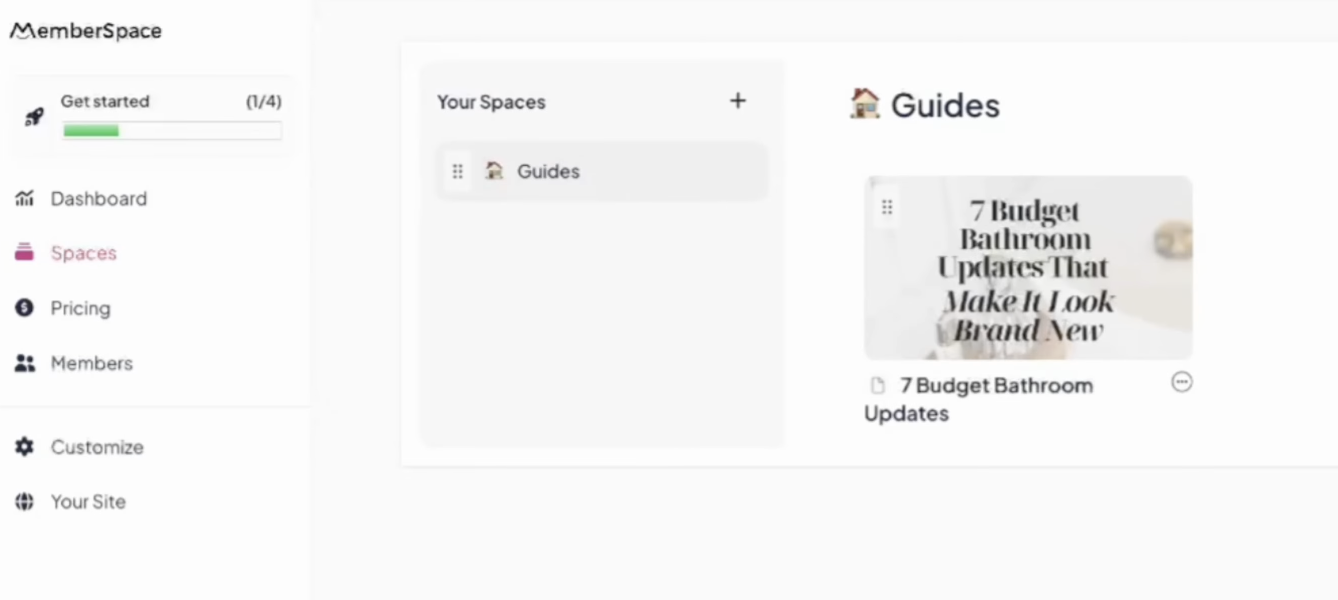
In MemberSpace, digital products are organized into “Spaces,” which are areas for exclusive content.
To upload your product:
- Create a new Space (for example, “Guides”)
- Upload the PDF exported from Canva
- Add a title and optional cover image
- Enable the download option so customers can save the file
You can add multiple digital products to the same space or create additional spaces as your product library grows!
Step 4: Create a Pricing Plan
Next, set up how customers will pay for your digital product.
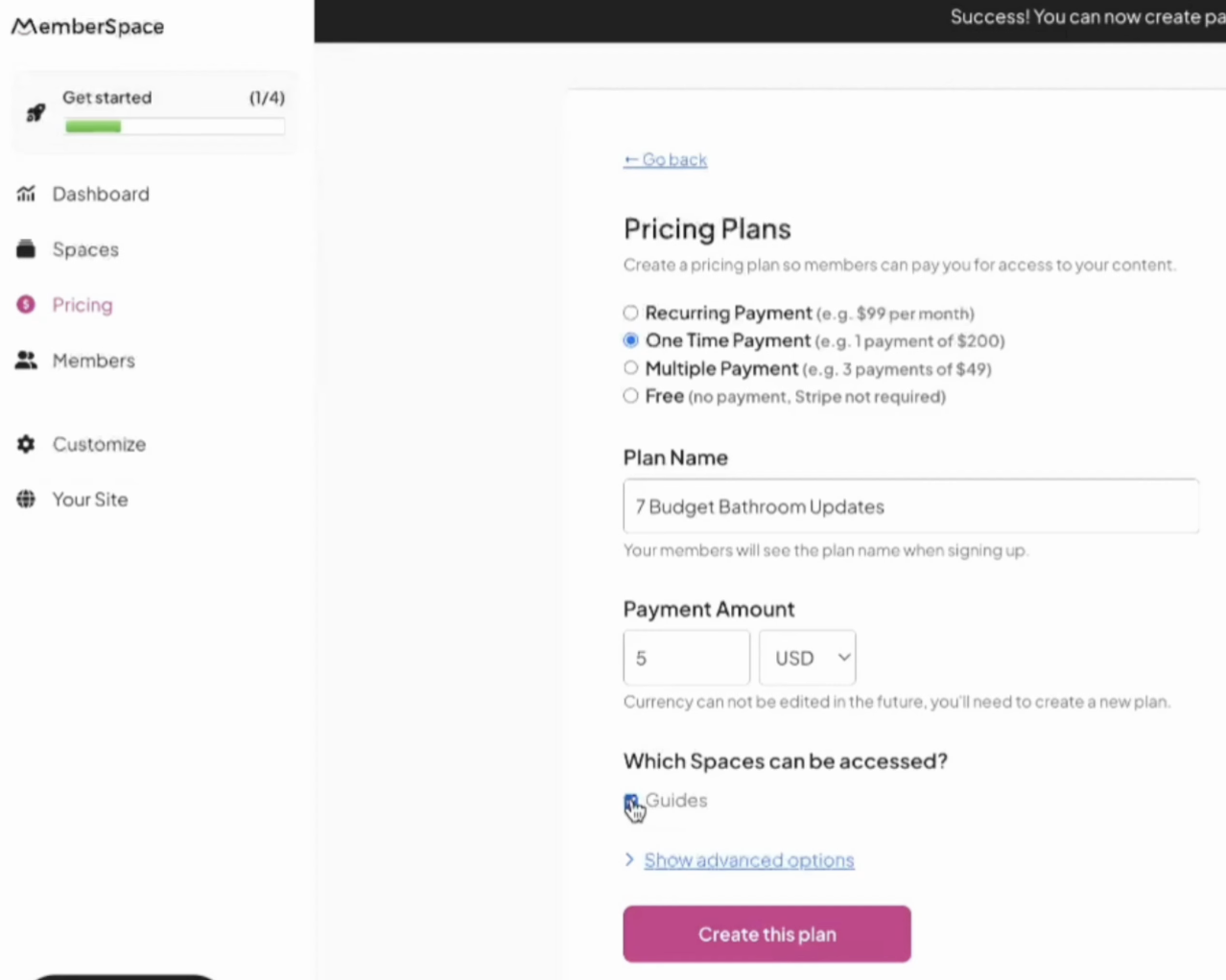
MemberSpace offers flexible pricing options, including one‑time payments and recurring memberships. For a single digital product, a one‑time payment is usually the simplest option.
To create a pricing plan:
- Choose a one‑time payment option
- Set your price
- Select which Space the purchase unlocks
- Save the plan
MemberSpace will automatically generate a checkout and signup link for that product.
Step 5: Share Your Product With the World
The final step is making your product available for purchase.
- Add the MemberSpace signup link to a button on your website (such as “Purchase” or “Buy Now”)
- Place the button on a sales page, homepage section, or product listing
- Test the checkout process to ensure everything works smoothly
Once the link is live, customers can purchase the product, create an account, and instantly access or download the digital file.
Final Thoughts
With just five steps—creating a product in Canva, setting up MemberSpace, uploading your content, pricing it, and sharing it—you can start selling digital products directly from your own website. This setup gives you full control over your products, your pricing, and your customer experience, making it a powerful option for growing a digital business.