

Team MemberSpace
Squarespace doesn’t currently have a native community feature built in. So if you’ve been trying to create a private discussion space, forum, or group directly on your Squarespace website, you’ve probably noticed there isn’t an easy built-in way to do it.
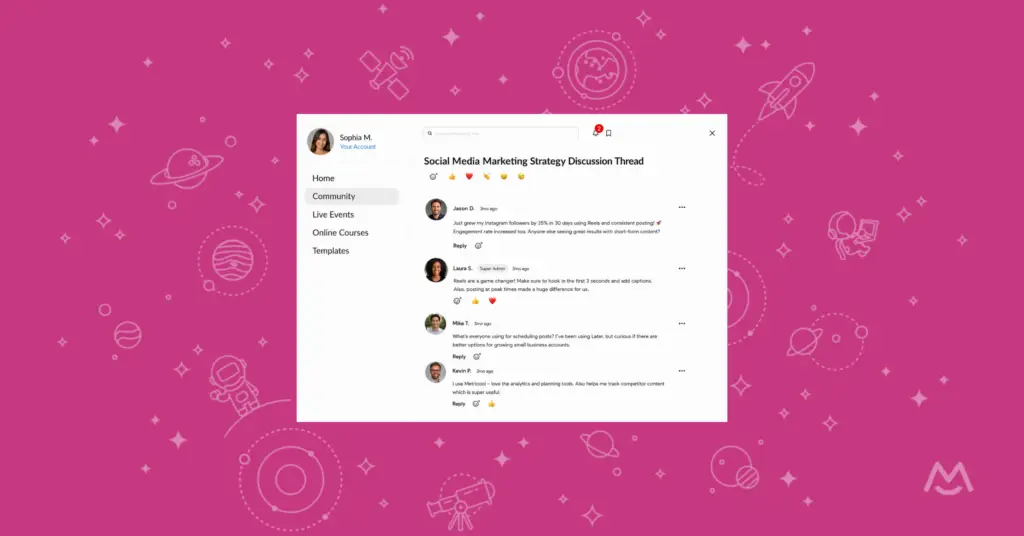
But with MemberSpace, you can easily add discussion threads and private community conversations, as well as add comments sections directly to your membership content so members can interact, ask questions, reply to each other, and stay engaged directly on your website.
This works really well for:
- online courses
- memberships
- coaching communities
- paid newsletters
- content libraries
- masterminds
- private member groups
In this guide, we’ll show you exactly how to create a private Squarespace community forum or discussion space using MemberSpace.
Launch a private community on Squarespace!
The easiest way to accept membership payments or one-time charges for digital products like podcasts, online courses, communities, content libraries, and more — all from your own website!
Get started for free! 5 minutes to set up.
Can You Create a Community Forum on Squarespace?
Squarespace doesn’t have a native community forum feature, but you can easily add:
- discussion threads
- comments sections
- member conversations
- replies and reactions
directly to your Squarespace site using MemberSpace.

How to Use MemberSpace for Community Discussions
MemberSpace is a Squarespace membership plugin that allows you to create discussion threads where your members can leave comments, reply to each other, mention other members, and react to comments.
There are two main ways you can use this feature:
- Set up a dedicated discussion thread for community conversation
- Add a comments section directly to your members-only content, like an online course, blog post, podcast episode, or newsletter
Here’s how to set it up.
Step 1: Create a Space in MemberSpace
First, create a new Space in your MemberSpace account.
This is where your community discussions will live. You can name the Space whatever you’d like, just make sure to toggle on the Enable comments/reactions feature.” This allows members to leave comments, reply to each other, mention other members, and react to comments.
Step 2: Set up Your Discussion Thread
To create a forum-like discussion thread, you’ll need to select Add Content and then give your thread a title. You can add questions, prompts, etc. in the Body text to prompt your members to start engaging.
This gives members one central place to ask questions, share ideas, tag each other, and keep the conversation going.
You can also add a comments section directly to specific members-only content.
For example, if you’re adding an online course lesson, blog post, podcast episode, or newsletter, just make sure Enable Comments/Reactions is turned on for that content.
This lets members discuss the content right where they’re consuming it.
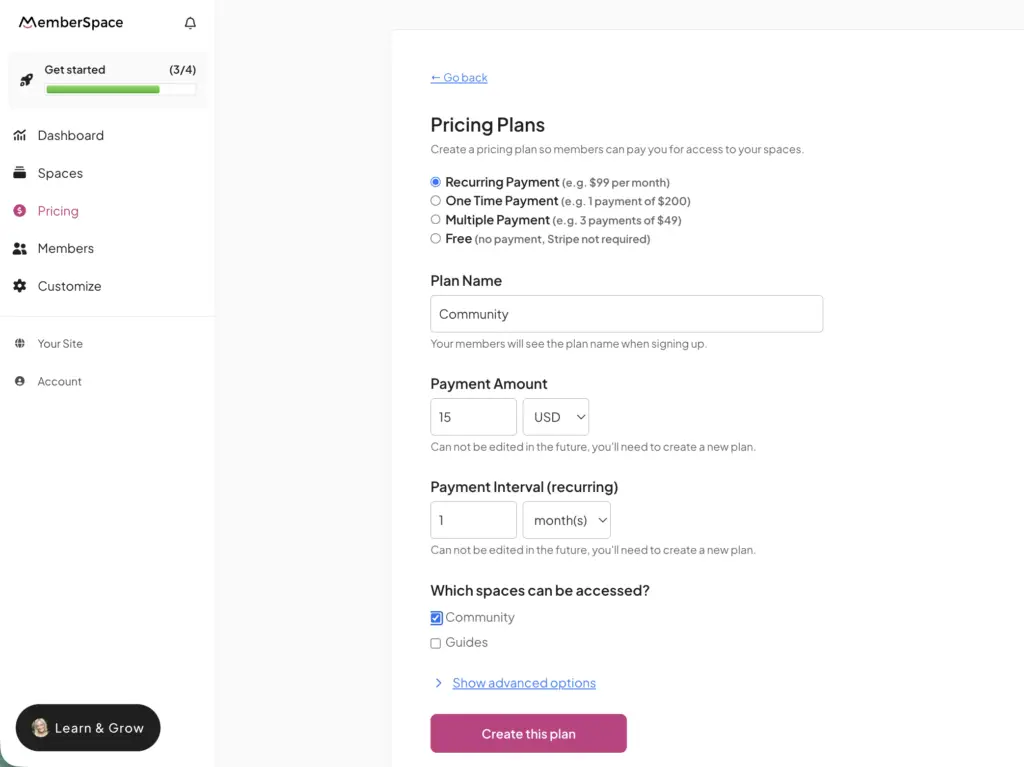
Step 3: Create a Pricing Plan
Now decide how people will access your community forum.
With MemberSpace, you can create a free community or charge for access with a one-time payment, recurring subscription, or multiple membership tiers.
For example, you might create:
- a free community discussion thread
- a paid members-only community
- a premium discussion space for coaching clients
- a course community included with course access
- a private newsletter with comments enabled
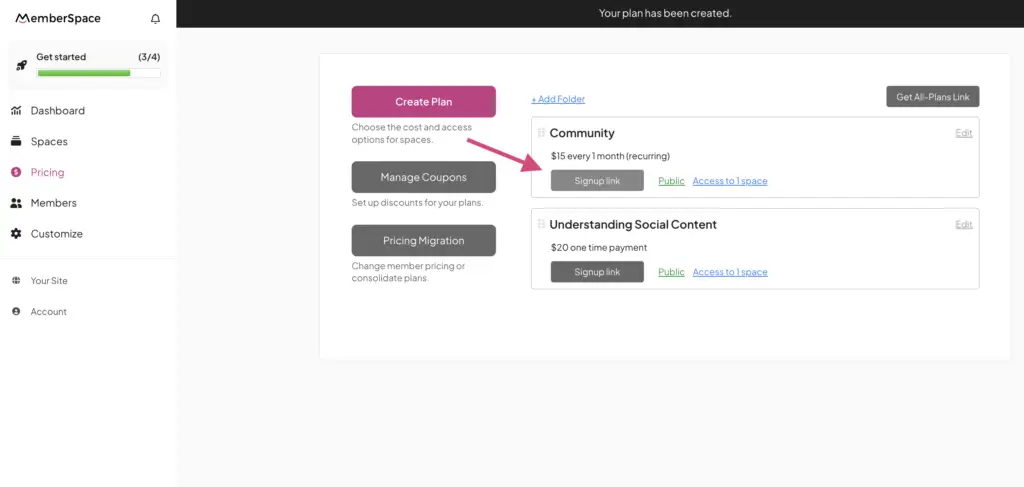
Once your pricing plan is created, select which Space the plan unlocks. MemberSpace will automatically generate a signup link for that plan.
Step 4: Launch Your Discussion Space
Grab the signup link from the pricing plan you just created and add it anywhere you want to promote your community or members-only content.
You can add it to CTA buttons, landing pages, sales pages, navigation menus, emails, or anywhere else you want people to join.
When someone clicks the signup link, they’ll fill out a signup form and payment form if the plan is paid. Then they’ll get access to your discussion space.
From there, members can add a profile picture, edit their display name, and start chatting.
What Members Can Do Inside Your Squarespace Community
Once enabled, your members can:
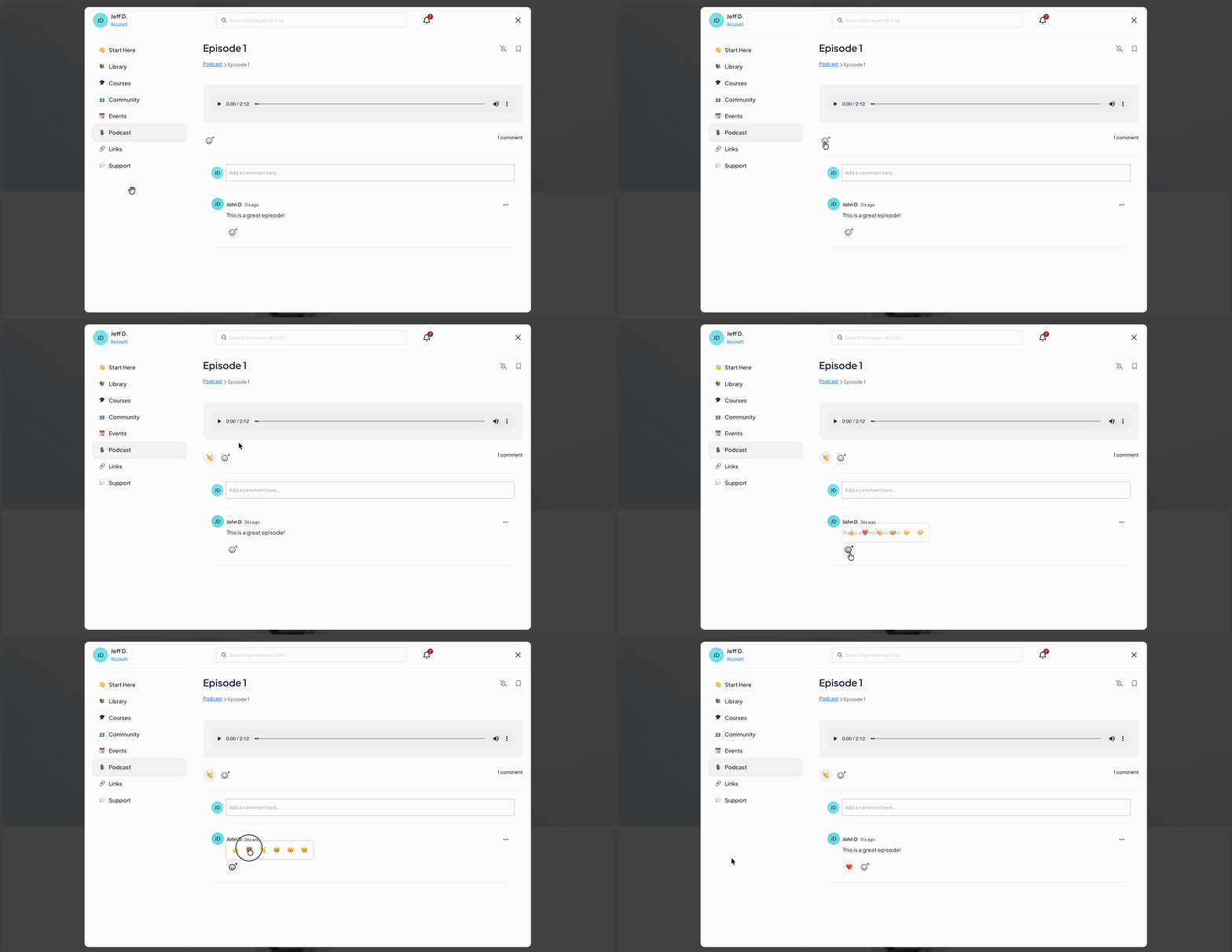
- leave comments
- reply to discussions
- react to comments
- mention other members
- participate in ongoing conversations
Admins can also:
- manage who can participate in comments
- block members from commenting
- delete comments
- receive admin notifications whenever someone comments or reports a comment
- mention members individually
- use @everyone to notify all members at once
Examples of Community Discussions
Forum-Like Discussion Thread
In this example, a forum-like discussion thread was added directly to an online course.
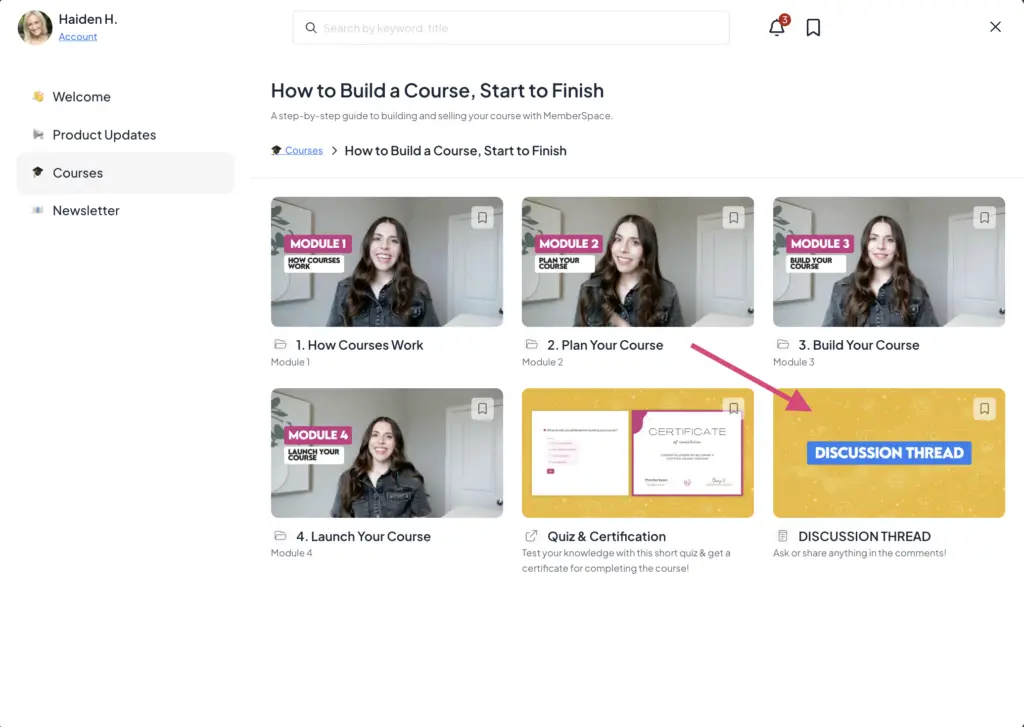
As members work through the course, they can:
- ask questions
- tag the course creator
- interact with other students
- leave ideas and feedback
- continue discussions directly below the course content
This creates a much more engaging learning experience compared to static course content alone.
Comment Section
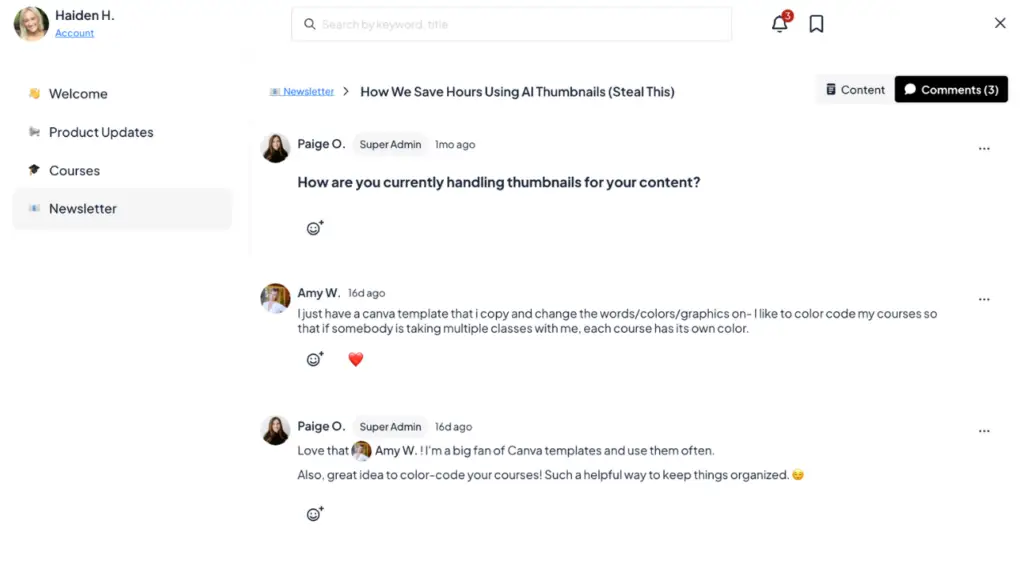
Comments sections also work really well for newsletters and content memberships.
For example, a creator might end a newsletter post with a discussion prompt like:
“How are you currently handling thumbnails for your content?”
Members can then answer directly in the comments, reply to each other, and continue the conversation inside the membership itself.
This helps turn one-way content into an actual community experience.
Community Spaces Are Coming Soon
One of our most-requested features is dedicated community functionality, so we’re also developing a Community Spaces feature where you and your members will be able to create posts and have discussions directly inside your membership.
To stay up to date on this feature, check out our Product Roadmap.
FAQ about Squarespace Community Forums
FAQ
Does Squarespace have a community forum feature?
No, Squarespace does not currently have a native forum feature built in. But with MemberSpace, you can add forum-like discussion threads, comments, replies, reactions, and member conversations directly to your Squarespace membership site.
Can you create a private Squarespace community?
Yes. MemberSpace allows you to create private members-only Spaces where people can access protected content and participate in discussions directly on your website.
How do I add discussions to a Squarespace membership site?
Inside MemberSpace, simply enable the Comments/Reactions feature on your content or discussion thread. This allows members to leave comments, reply to each other, react to discussions, and participate in conversations directly on your website.
Can members reply to each other inside the discussion threads?
Yes. Members can reply to comments, react to discussions, mention other members, and participate in ongoing conversations directly inside your membership content.
Can I create a paid Squarespace community?
Absolutely. With MemberSpace, you can create:
- free communities
- paid memberships
- one-time payments
- recurring subscriptions
- multiple membership tiers
You can charge for access to your discussion space, online course, newsletter, resource library, or any other protected content.
Can I create a free Squarespace forum or discussion space?
Yes. You can create a free pricing plan in MemberSpace if you want members to join your community or discussion thread without charging for access.
What types of content can have discussions enabled?
You can enable discussions and comments on:
- online course lessons
- newsletters
- blog posts
- podcast episodes
- downloads
- resource libraries
- standalone discussion threads
This makes it easy to turn static membership content into a more interactive community experience.
Can admins moderate comments and discussions?
Yes. Admins can:
- manage who can participate in comments
- block members from commenting
- delete comments
- receive notifications whenever someone comments or reports a comment
- mention members individually
- use @everyone to notify all members at once
What’s the difference between Squarespace Member Sites and MemberSpace?
Squarespace Member Sites mainly focuses on restricting access to pages and content. MemberSpace adds more advanced membership functionality like discussion threads, comments, memberships, flexible pricing plans, Spaces, and member engagement features directly on your Squarespace website.
Can I use MemberSpace for online course discussions?
Definitely. Many business owenrs use MemberSpace to add discussion threads and comments directly below online course lessons so students can ask questions, share feedback, and interact while working through the course.
Final Thoughts
While Squarespace doesn’t currently offer a native community forum feature, MemberSpace makes it easy to create private discussion spaces, comments sections, and forum-like conversations directly on your website.
Whether you’re building:
- an online course
- coaching membership
- private newsletter
- mastermind
- resource library
- or members-only community
adding discussion functionality can make your membership feel much more engaging and valuable for members.
Launch a private community on Squarespace!
The easiest way to accept membership payments or one-time charges for digital products like podcasts, online courses, communities, content libraries, and more — all from your own website!
Get started for free! 5 minutes to set up.